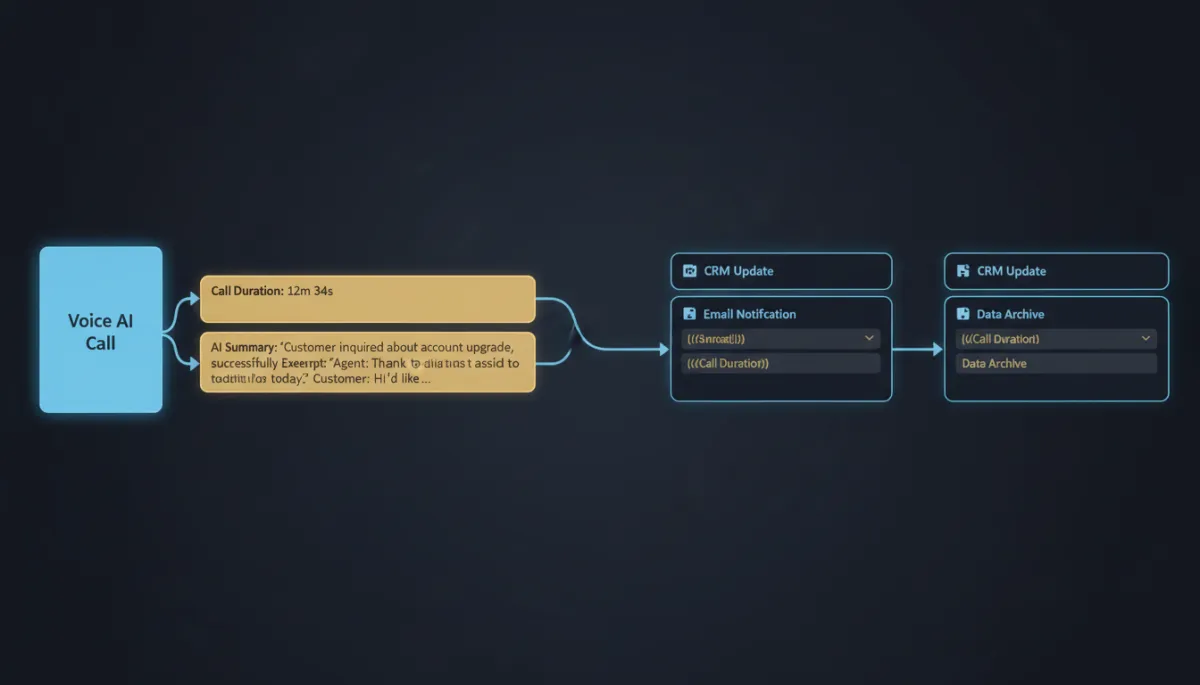
Pipe Your Voice AI Call Details Straight Into Your Workflows
Your Voice AI has a great conversation with a lead — captures the details, handles the call, hangs up. And then all that context just… sits there, trapped in the call log, while your follow-up automation runs blind as if the call never happened. That gap is closed now.
Voice AI call data flows directly into your workflows, so what was said on the call can drive what happens after it.
The call details become workflow fuel
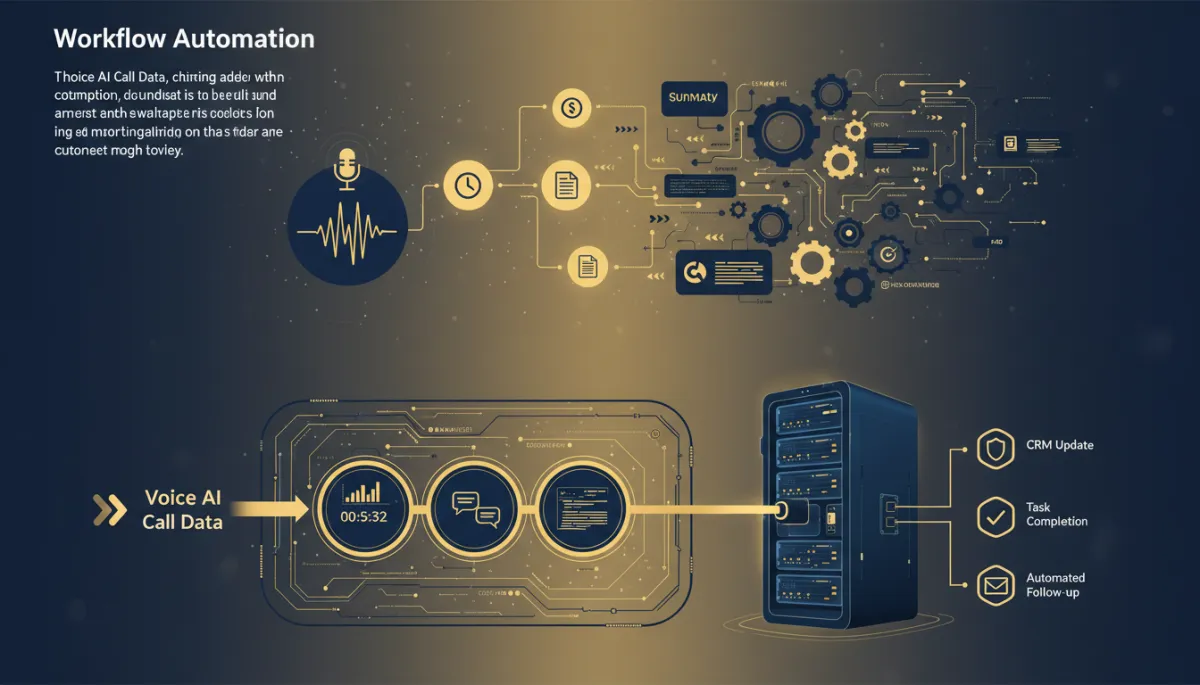
You can now access and template Voice AI data inside your workflows — call duration, the AI’s summary, and the full transcript, dropped right into the automation. Instead of a follow-up that knows only “a call happened,” you get a follow-up that knows what the call was about.
That means the summary can go into the internal notification to your rep, the transcript can feed a next-step decision, and the duration can branch your logic (a 12-second call and a 12-minute call should not get the same follow-up).
Your follow-up stops flying blind. It knows what happened on the call, because the call handed it the summary and transcript.
How to reach the data
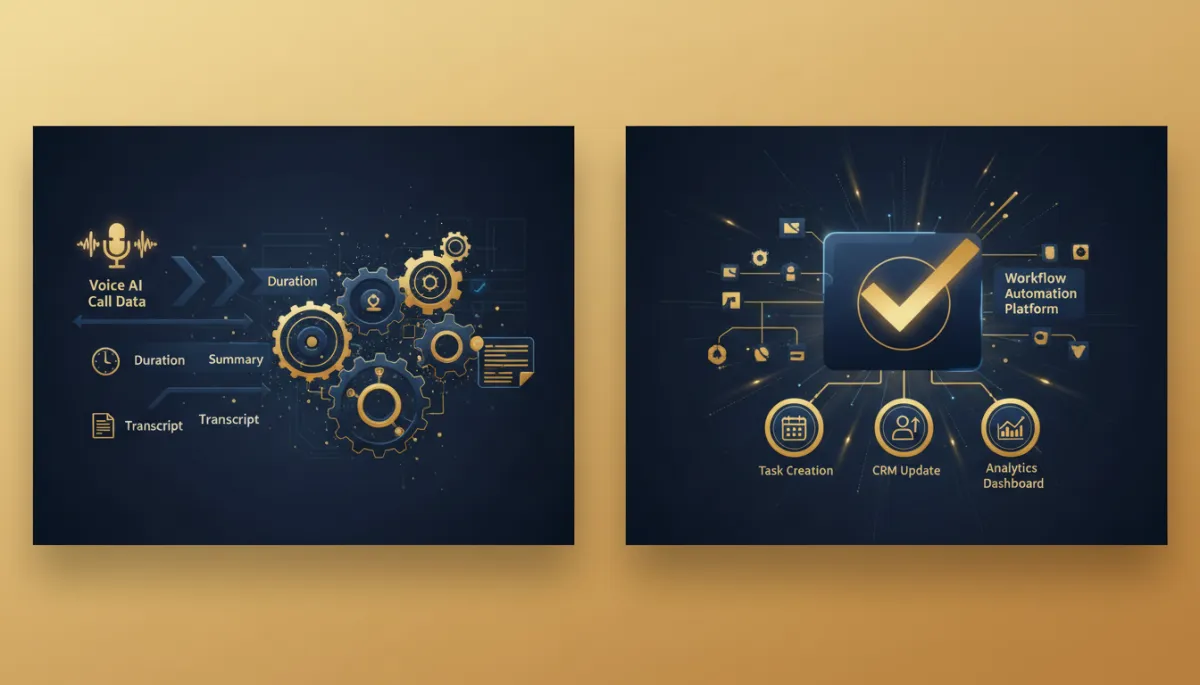
Inside the workflow, Voice AI variables live in the Voice AI menu under Custom Tags — select them like any other field and template them into messages, notes, or conditions.
The setup that feeds it: enable Voice AI Agents for your account, then configure an agent with its name, business name, language, and voice, and set the interaction type to inbound calls. Under the agent’s goals, turn on “Trigger workflow when a call is completed” and pick the workflow to fire. Assign the agent a phone number, and every completed call hands its data to that workflow.
The takeaway
Stop letting your best call context die in the log. Turn on the “trigger workflow when a call is completed” goal, pull the summary, transcript, and duration into your follow-up from the Custom Tags menu, and let the actual conversation shape the next step. Your automation finally acts like it was listening.
Simplify. Automate. Scale.
