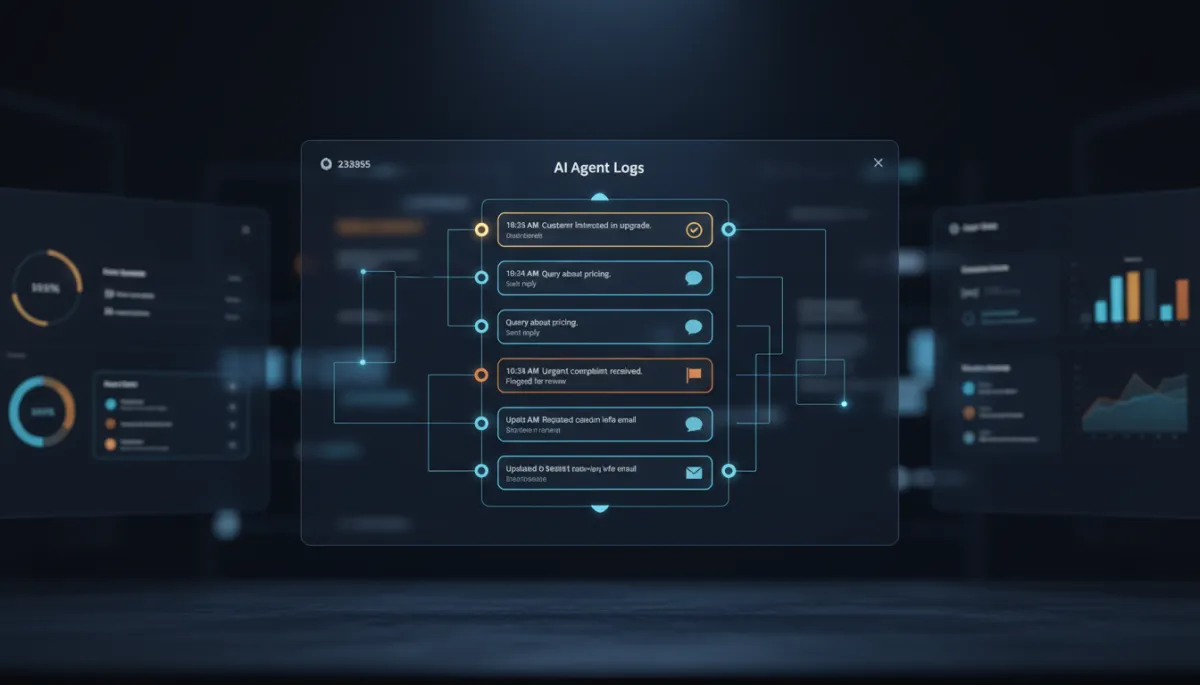
See Exactly What Your AI Said While You Were Asleep
You handed your AI the inbox. Now you can watch the tape — every message it sent, every action it took, and why.
For most owners, the AI is a black box. It replies to a lead at 2am, you wake up to a booked appointment, and you have no idea how it got there — until the one time it answers something weird and you’ve got nothing to go on. Agent Logs end the guessing. It’s the full replay of what your Savage AI actually did.
What you can finally see

Open a conversation in Agent Logs and you don’t just get the final message the customer saw. You get the whole path: what the contact said, how the AI responded, which action it reached for, what info it passed in, what came back, and how long each step took.
It answers the questions you used to just shrug at:
- Did the AI check the calendar like it was supposed to?
- Did it actually use the knowledge base, or make something up?
- Why did that one reply take eight seconds?
- Did it hand off to a human when it should have — or bulldoze ahead?
The AI isn’t a black box anymore. It’s a replay you can scrub through, step by step.
Conversation, turn, step — the three layers
The logs are organized the way the AI actually thinks. A conversation is the whole back-and-forth with one contact. A turn is one exchange inside it — they message, the AI thinks, it replies. A step is a single move inside that turn: message received, agent invoked, calendar checked, knowledge base searched, contact info captured, response generated, handoff triggered.
Why it matters: AI agents aren’t linear. The same bot takes a different path depending on what the customer says. Without the step view, you’re staring at an outcome with no idea how it happened. With it, you can point to the exact step where things went right — or sideways.
Three doors into the logs
You don’t have to dig. Agent Logs meet you wherever you already are:
The Agent Logs tab under AI Agents is mission control — every session, filtered by time range, contact, channel, or agent. From the Conversations page, you can open the log for a thread without leaving the inbox you’re already reading. And from a contact record, you can start with a person — “what has my AI been telling Alex?” — and pull up every session tied to them.
There’s a Metrics view too: conversations handled, contacts reached, average response time, top actions, busiest hours. Session logs tell you about one interaction; metrics tell you what your AI is doing across all of them.
Parsed when you want plain, raw when you want proof
Most of the time you’ll live in the parsed view — clean fields and values, readable at a glance. When you need to see exactly what got passed between the AI and an action — debugging a booking that went wrong, say — the raw view shows the underlying data, no smoothing. You don’t need to be technical to use this. You just need to want the truth about what your AI did.
The takeaway
Don’t wait for something to break. This week, open Agent Logs and review three real conversations end to end — ideally a booking, a question your AI handled solo, and a handoff to your team. Watch the steps. You’ll spot one thing to fix in your prompt or your knowledge base inside ten minutes, and you’ll stop treating your AI like a mystery employee you never review.
