Every Customer's Whole Story on One Screen That Saves Itself
The rebuilt contact page puts everything you need about a customer on one screen — and saves your edits the second you click away.
If you’ve ever scrolled forever to find a contact’s last appointment, edited a field, and then lost it because you forgot to hit Save, the new contact detail page is going to feel like a weight off. It was rebuilt around one idea: everything about a person, one screen, no friction.
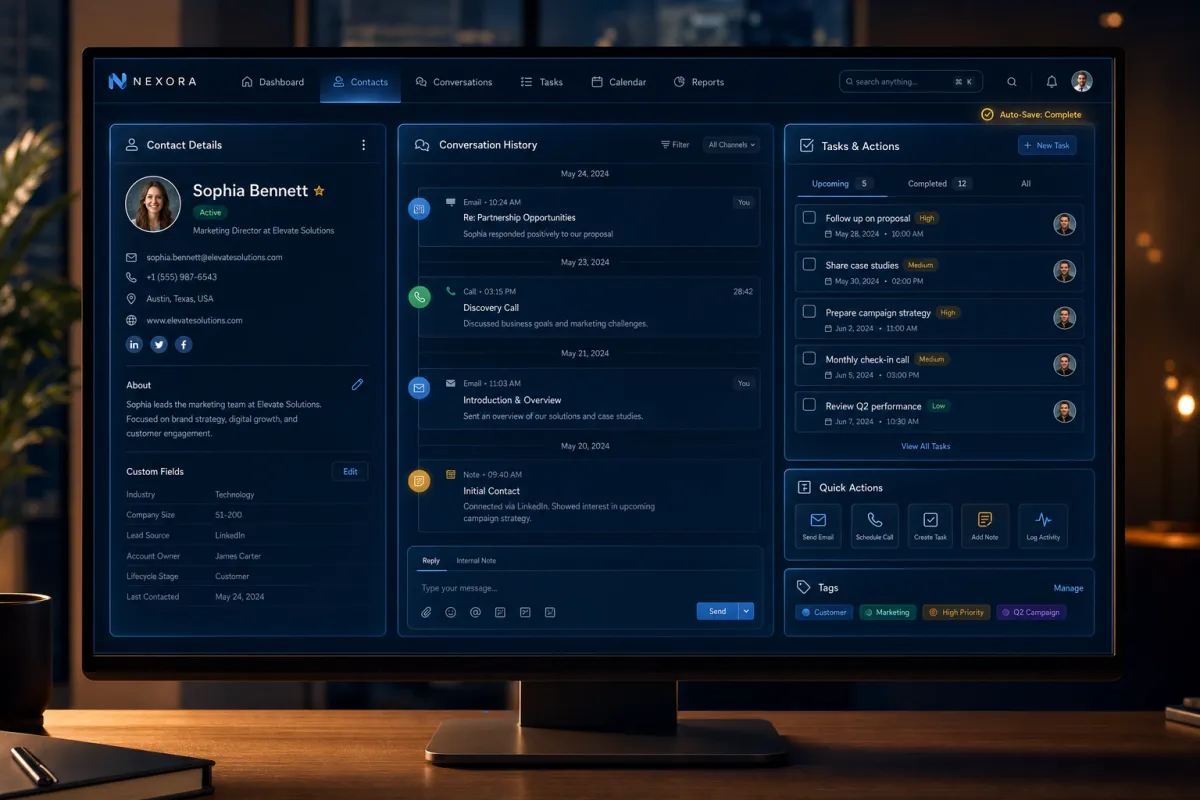
Three panels instead of endless scroll

The page is split into three. Left is the contact’s information — name, email, phone, tags, DND, quick actions. Center is the story: every conversation, call, note, and activity in one timeline. Right is where you act — tasks, notes, appointments, documents, payments, and linked opportunities. Instead of hunting top to bottom, you glance left to know who, center to know what’s happened, right to do the next thing.
Everything about a person on one screen, and it remembers how you like to look at it.
Auto-Save is the quiet hero
The upgrade that saves the most headaches: Auto-Save. Turn it on and your edits save automatically the moment you leave a field — no Save button, no lost changes. You enable it from the menu on the record (or an admin flips it on for the whole sub-account under Settings), and from then on every edit just sticks. For anyone who’s lost a field’s worth of typing, this alone is worth the switch.
Built for people who live in the CRM
If you’re in and out of contacts all day, the small things add up. Arrow keys move you between contacts without going back to the list. The right panel collapses with Escape and remembers your last tab. You can hide empty fields so you only see what’s filled, and search inside fields to jump straight to what you need. The page remembers your layout, so it looks the way you left it every time.
The takeaway
Open any contact, make an edit, and when the Save bar appears, turn on Auto-Save from the three-dot menu — that one toggle ends lost changes for good. Then spend two minutes learning the arrow-key navigation and the hide-empty-fields toggle. The page was built to get out of your way, but only once you flip on the features that do it.
