Your Google Calendar Quietly Disconnected. Your Double-Bookings Didn't.
A password change is all it takes to break the sync — and nobody tells you until two clients show up for the same slot.
You changed your Google password on Tuesday. On Friday, two clients walk in for the same 2pm. Nobody double-booked on purpose. Your calendar just quietly stopped talking to Google three days ago, and nothing told you.
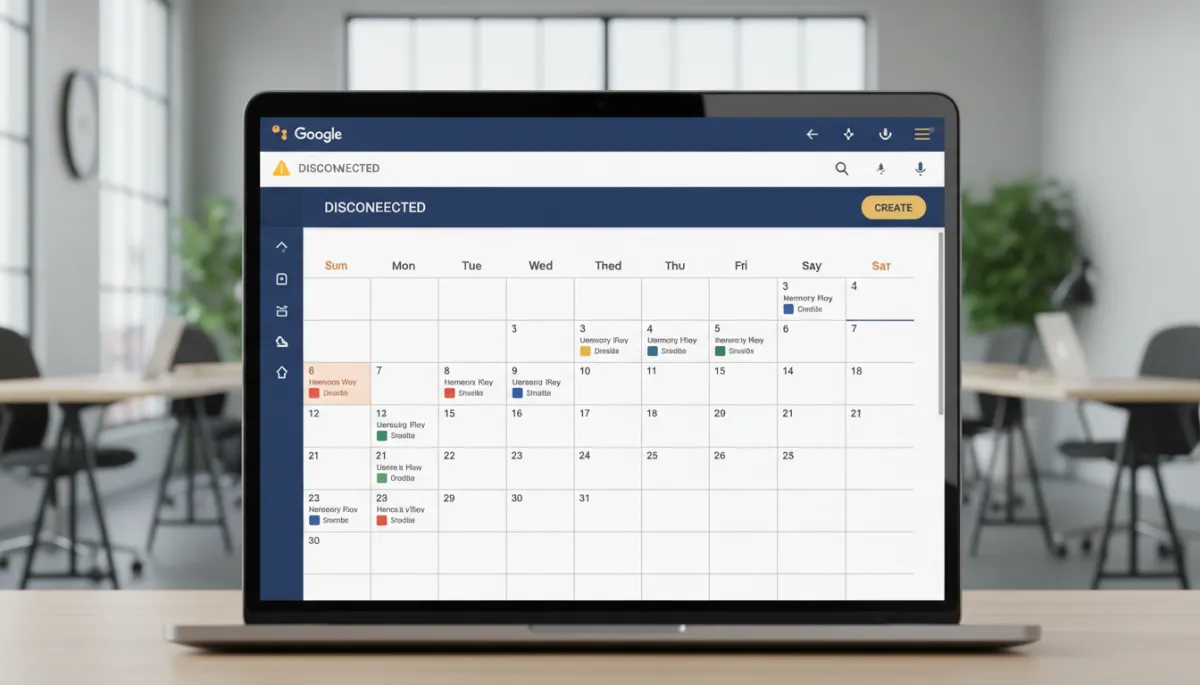
That's the thing about a broken Google Calendar sync: it fails silently. Appointments keep booking inside Lead Savage — they just stop showing up on the Google Calendar you actually check. By the time you notice, you've already got a collision.
Why it breaks (it's almost never your fault)
Google guards calendar access hard, and a few normal things trip the wire:
- You changed your Google password. That revokes third-party access — including Lead Savage — automatically.
- Permissions got revoked in your Google security settings, on purpose or not.
- Google flagged suspicious activity and cut access as a precaution.
- The secure token connecting the two simply expired.
Any one of those and the sync stops. Your existing appointments are safe inside Lead Savage — nothing gets deleted — but new ones stop mirroring to Google. The reconnect is a two-minute fix once you know where to look.
How to spot it before a client does
You won't get a flashing red warning, but there are two tells. First, new appointments stop appearing on your Google Calendar even though they're booking fine inside Lead Savage — the two lists drift apart. Second, your calendar settings show the Google account as disconnected instead of linked. If you've just changed your Google password, don't wait for either signal. Treat the password change itself as the warning and reconnect before your next booking window.
The fix: disconnect, reconnect, done
Don't overthink it. You're not repairing anything — you're handing Google a fresh handshake.
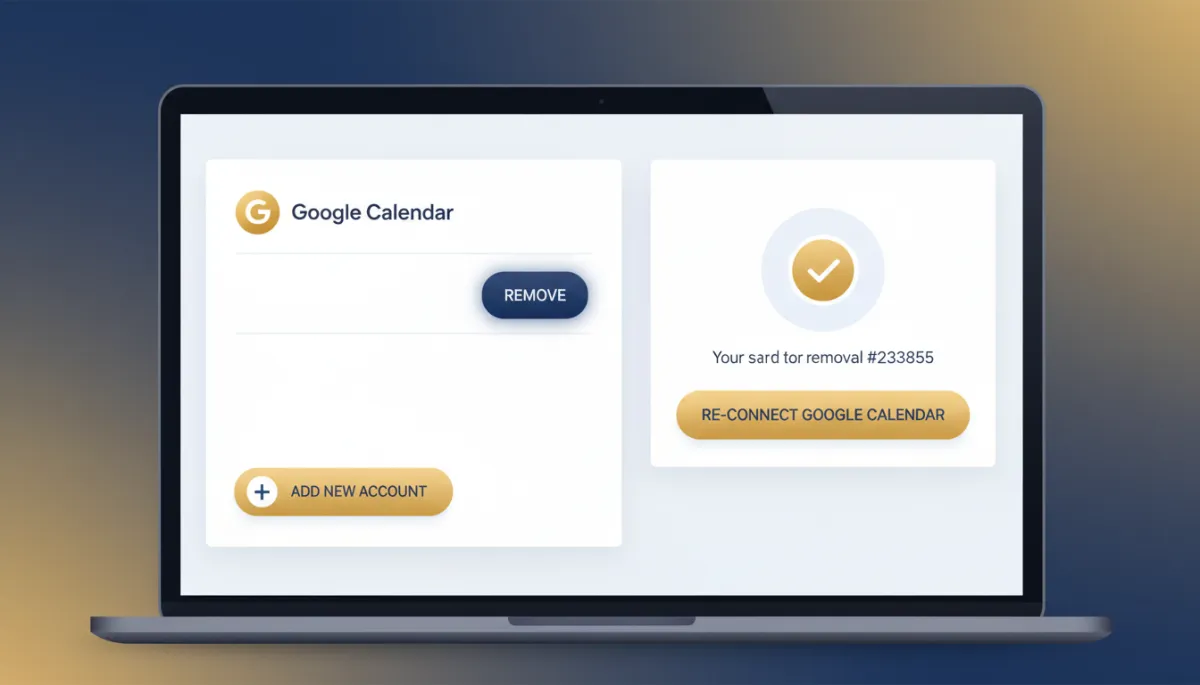
Step 1 — Remove the broken connection. Go to Settings → My Profile → Calendar Settings. Find the connected Google account, click the delete (bin) icon, check the acknowledgement box in the popup, and confirm. Yes, deleting the thing that's broken feels backwards. It's the reset.
Step 2 — Add it back. Same screen: Settings → My Profile → Calendar Settings → + Add New. Sign in to Google, grant access, and a fresh token reconnects the two systems.
Step 3 — Test before you trust it. Book a test appointment and watch it land on your Google Calendar. If it shows up, you're synced. If it doesn't, delete and re-add once more — a clean reconnect clears almost everything.
A broken calendar sync doesn't send an alert. It sends two clients to the same chair.
Don't panic about the appointments you already booked
Common fear, quick answer: no, you won't lose them. Everything already on your Lead Savage calendar stays exactly where it is. The disconnect only stops the mirroring between the two systems — it doesn't touch a single booked appointment. Once you reconnect, syncing picks right back up.
A couple of things worth knowing:
- One primary Google calendar syncs per user. If you run more than one, pick the calendar your bookings should live on in your calendar settings.
- Any time you change your Google password, assume the sync dropped and reconnect. Two minutes now beats a double-booking later.
The takeaway
If appointments aren't showing up in Google — or you just changed your password — go to Calendar Settings, delete the Google connection, add it back, and book a test appointment to confirm. That's the whole fix. Do it the moment you suspect a drop, not the moment a client is standing in your lobby you didn't expect.
Your booking system only works if the two calendars agree. Keep them talking.
