
"Ends Friday" Doesn't Work. A Ticking Clock Does.
You wrote the promo. Twenty percent off, ends Friday. It’s clear, it’s honest, and about four percent of the people who open it will act before Thursday night.
“Ends Friday” is information. A clock counting down from 71 hours is pressure. Same offer, different response, and the gap between them is one element you’ve been meaning to add since 2023.
The reason you never add the timer

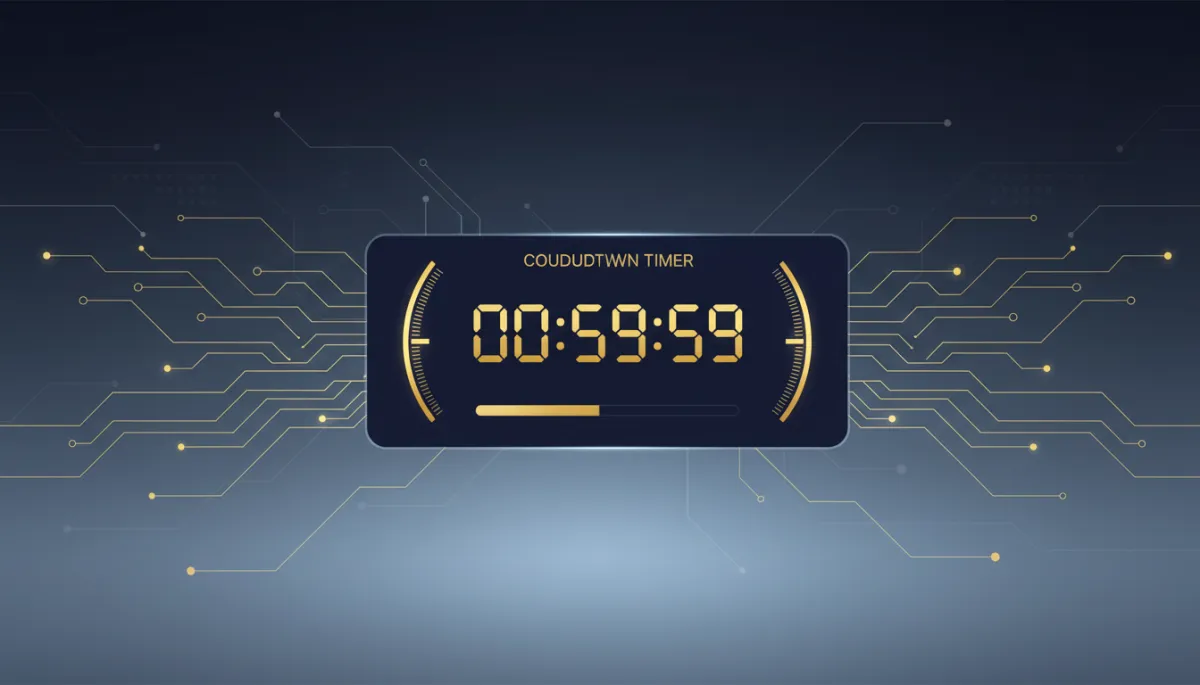
It’s not that countdown timers are hard. It’s that they’re one more thing.
You’re in the email builder at the end of a long day, the copy is finally right, and adding a timer means finding it in the element library, configuring an end date, picking a style, setting a link, and positioning it. Five steps between you and sending. So you send.
Savage AI now handles the noticing. As you build a template or update a layout, it analyzes your content and subject line. When it spots deadline-driven material, it surfaces a prompt with three options: pick an existing timer, build a new one, or skip.
That’s the whole change, and it’s the right change — because the failure was never the configuration. It was remembering.
“Ends Friday” is information. A clock counting down from 71 hours is pressure.
What it flags, and what it leaves alone
It only fires on emails where urgency actually belongs:
- Flash sales and limited-time offers — expiring discounts, inventory-capped deals
- Product launches and pre-orders — early access windows, launch-day deadlines
- Webinars and live events — registration cutoffs, start times
- Expiring offers and renewals — memberships lapsing, packages about to expire
And it stays quiet on the emails where a ticking clock would be strange or hostile: welcome sequences, receipts and order confirmations, newsletters without a deadline, password resets, general announcements.
That filtering is the part that makes it usable. A tool that suggested a countdown timer on your onboarding email would get switched off in a week.
Setting one up
Go to Marketing → Emails and start building. Write your copy as normal — the sale end date, the event time, whatever the deadline is. Savage AI reads it in the background.
When the prompt appears, you’ve got three paths.
Reuse an existing timer. If you’ve already built one for this promotion — say the same Labor Day deadline is going into three emails — select it. Same clock, same style, consistent across the sequence.
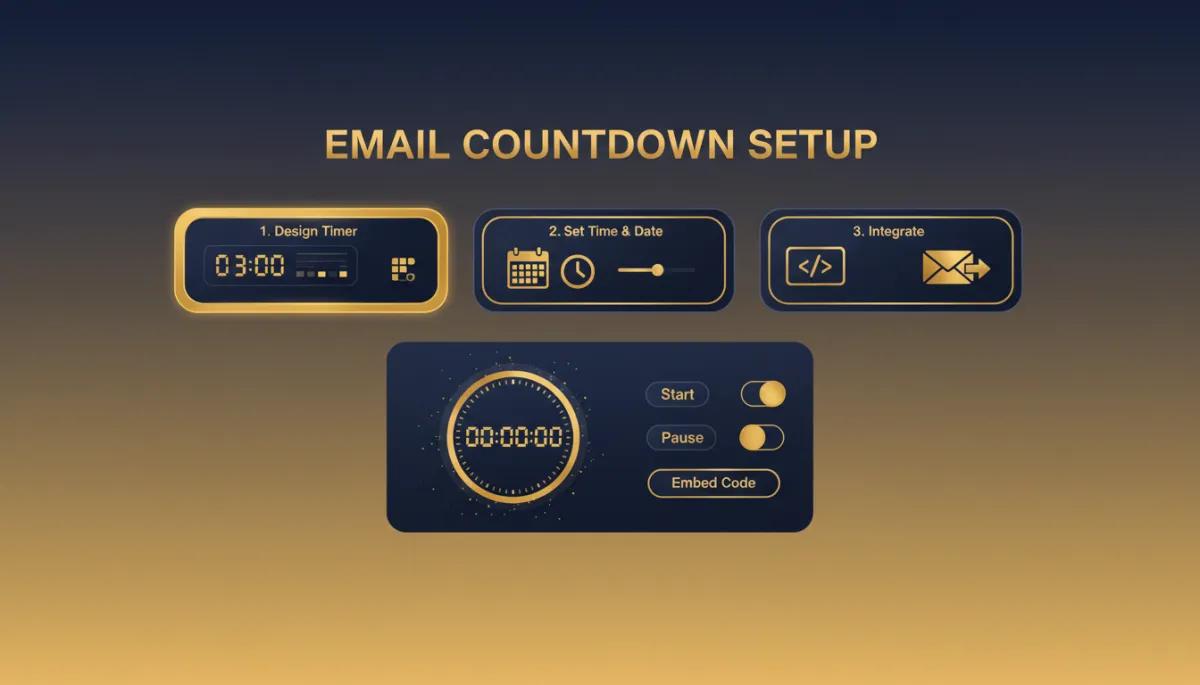
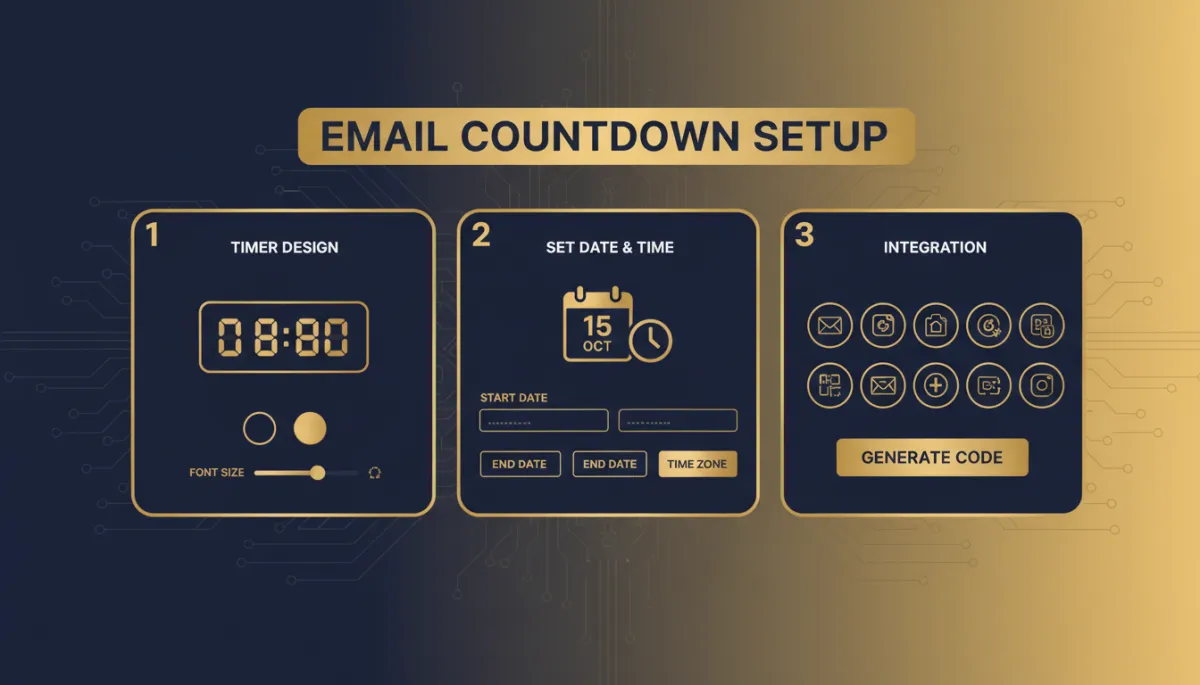
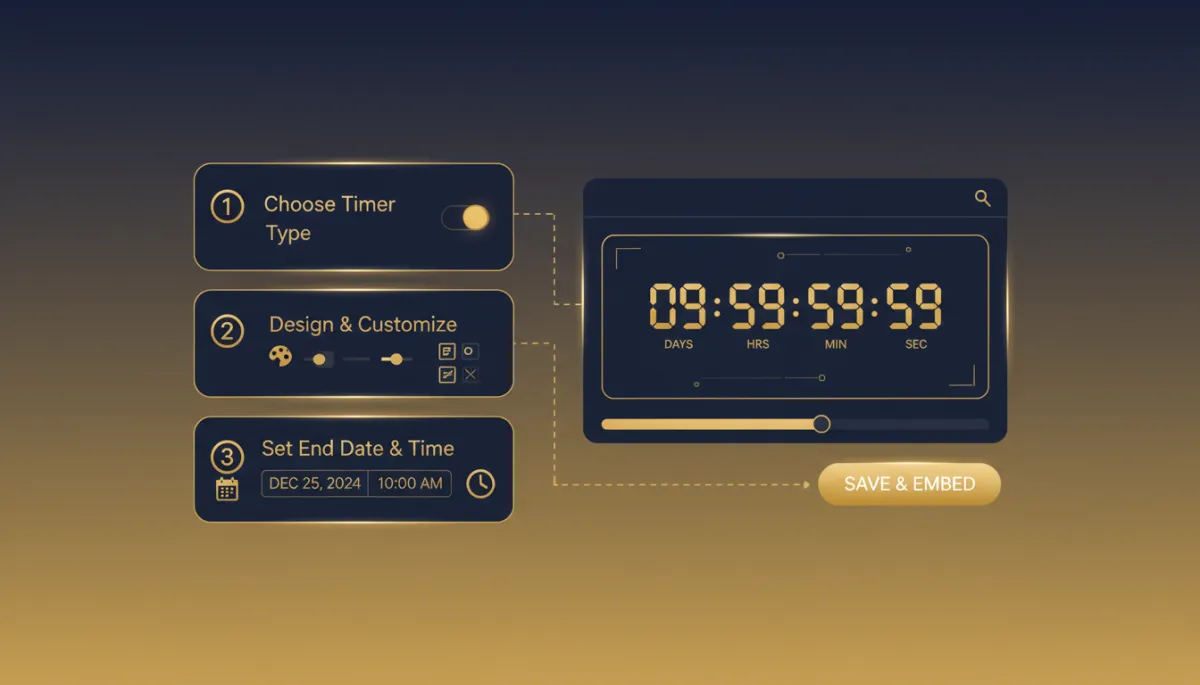
Build a new one. Three fields: the end date and time for your offer, a visual style that matches your email, and the destination URL for when somebody clicks the timer. Save it.
Skip. Click past it, or just don’t respond — the prompt times out and your build continues without interruption. And you can always add a timer manually from the element library later, or ask for one on an email Savage AI didn’t flag.
Once it’s in, the timer lands in your template automatically. Drag it wherever you want with the builder’s normal drag-and-drop. Reposition it, restyle it, swap it for a different one — nothing about it is locked.
Where to put it
Next to the call to action. Not in the header, not at the bottom under the signature — directly adjacent to the button or the offer detail you want people acting on. The timer’s job is to be the last thing they read before they decide.
Two practical notes.
Check your end date twice. A timer that expires a day before your actual deadline kills conversions you’d otherwise have gotten. A timer still running after the offer closed is worse — that’s the email that generates a support message.
Know how it degrades. Live timers animate in most modern email clients. In clients that don’t support dynamic content, the recipient sees a static image showing the time remaining as of send. The click destination works either way, so nobody hits a dead end.
For recurring promotions — the quarterly sale, the seasonal package — build the timer once and reuse it across the whole sequence.
The takeaway
Next time you write an offer with a deadline in it, don’t dismiss the prompt. Take the thirty seconds, set the end date, and drop the timer next to your CTA.
Then compare it against the last version of the same promo you sent without one. If a visible clock moves your numbers the way it moves most people’s, you’ve got a new default. If it doesn’t, you’re out thirty seconds.
Simplify. Automate. Scale.
