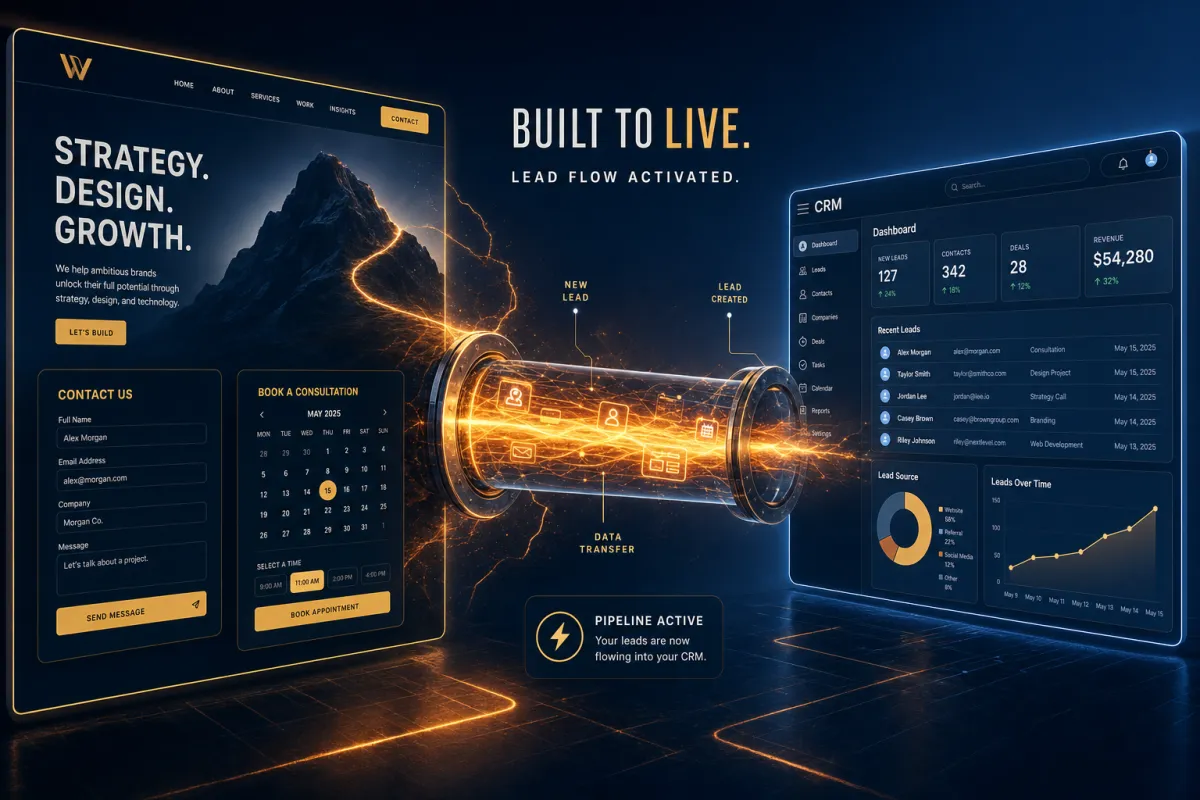
You Built the Page. Now Plug In the Lead Pipe.
The booking page is gorgeous. The form looks real. The calendar looks real. None of it is actually doing anything yet.
This is the single most expensive moment in Savage AI Studio, and almost everyone trips on it the first time. The page generates with a form on it. The form sits there. Looking real. Doing nothing. A week later you wonder why the campaign you ran to it produced zero new contacts in your account.
The answer is one click. Let’s go.
Why this is a separate step (and not a bug)

It’s deliberate. Savage AI Studio drafts the front end first — the layout, the fields, the booking section — without wiring it to your actual contacts and calendars. That’s the safety rail. It keeps you from publishing a half-built draft and accidentally collecting real leads into a page you weren’t ready to ship.
So the rule is: built ≠ connected. Generate the page, get it looking right, and then tell Savage AI Studio to plug it in.
How to connect the form
The form Savage AI Studio drops on your page is real HTML, real fields, real layout. What’s missing is the part that sends the data into your contacts.
Two ways to flip that switch:
- Ask in plain language. Tell Savage AI Studio: “Connect this form to my CRM.” That triggers the connect-to-CRM flow.
- Click the prompt in chat. When you ask Savage AI Studio to add a form, it often surfaces a Connect button right in the chat. Hit it.
Either path opens the CRM tracking flow. Once you confirm the connection, three things start happening at once:
- New form submissions create or update contacts in your Savage account
- The submissions show up in your form submission log
- The submissions can fire workflows downstream
Built ≠ connected. The form looks real because it is. It’s just not plugged into anything yet.
Where the submissions actually go after connection
A common assumption: “the form is on a Savage AI Studio page, so the submissions must live in Savage AI Studio.” They don’t. They live in your main Savage account — same as any other form on any other page.
You’ll find them in two places:
- Contacts. New submissions create contacts (or update existing ones if the email matches). They behave like any other contact you can tag, segment, and run workflows against.
- Sites → Forms → Submissions → External Forms. This is where the submission record itself lives. Same view you’d use for any external form tracking.
The reason “External Forms” matters: the form on a Savage AI Studio page uses external tracking behavior under the hood. That means you trigger workflows off it using the External Tracking Event trigger, not the standard form-submission trigger.
How to connect the calendar
Same idea, different mechanics. Savage AI Studio doesn’t invent a new calendar — it borrows one of yours.
- Build the page with a booking section (“create a consultation booking page for a fitness coach”).
- When prompted in chat, pick which of your existing Savage calendars you want to use.
- Savage AI Studio wires that calendar to the booking section on the page.
- Bookings made from the page hit your real calendar with the availability and confirmation logic you’ve already set up.
This is the part that matters: it’s still your calendar. Confirmations, reminders, follow-up automations — whatever you’ve already configured on that calendar runs the same way it always does. Savage AI Studio is just adding a prettier booking front end on top of it.
Turning form submissions into automations
Once the form is connected, you can fire a workflow on every submission. The trigger you want is External Tracking Event → event type Form Submission. From there you can filter by domain (so the workflow only fires for submissions from this specific Savage AI Studio page) or by external form, and stack your actions on top: tag the contact, send the welcome email, kick off the SMS nurture sequence, whatever you’d normally do for a new lead.
The practical loop:
- Build the form on the Savage AI Studio page
- Connect it to CRM tracking
- In Workflows, create a workflow with the External Tracking Event trigger
- Filter to the right domain and/or external form
- Add your follow-up actions
- Test it once with a real submission before you point traffic at it
Tips & gotchas
- Test the form before you celebrate. Submit it yourself. Confirm the contact lands in your CRM. Five seconds; saves a week of “why isn’t this working.”
- Refining the page after connection is fine. You can keep prompting Savage AI Studio to change the layout, add sections, swap colors — the form stays connected through it.
- Calendar confirmations and reminders run from the original calendar setup, not from Savage AI Studio. So if you want to change the confirmation email, you do it in calendar settings, not in the page builder.
- You don’t have to create a form in Savage first. Savage AI Studio generates the front-end form from a prompt; connecting it is the part that links to your CRM.
The takeaway
Build the page. Look at the page. Ask Savage AI Studio to connect the form. Pick which calendar runs the booking. Test it once with a real submission. Then run traffic at it.
That’s the order. Skip step three and you ship a campaign to a page that collects nothing. Don’t be that person — be the one whose pipeline filled up overnight because she remembered to flip the one switch.
