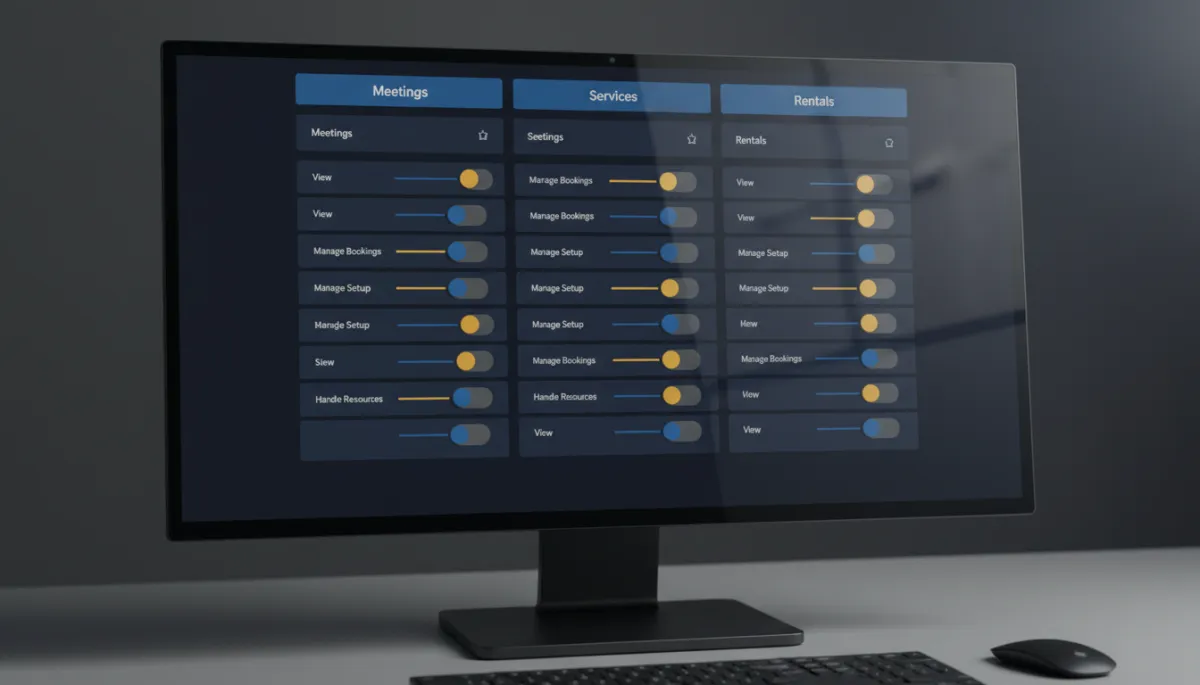
One Consistent Set of Calendar Permissions Across Meetings, Services, and Rentals
Your front-desk person should be able to manage appointments but not rewrite your service setup. Your manager should handle resources and global settings; your part-timer shouldn’t. Until now, the permission controls for Meetings, Services, and Rentals didn’t line up, so granting the right access meant guessing which module worked which way.
Now all three follow the same permission model — so you set access once and it means the same thing everywhere.
The same six controls, everywhere
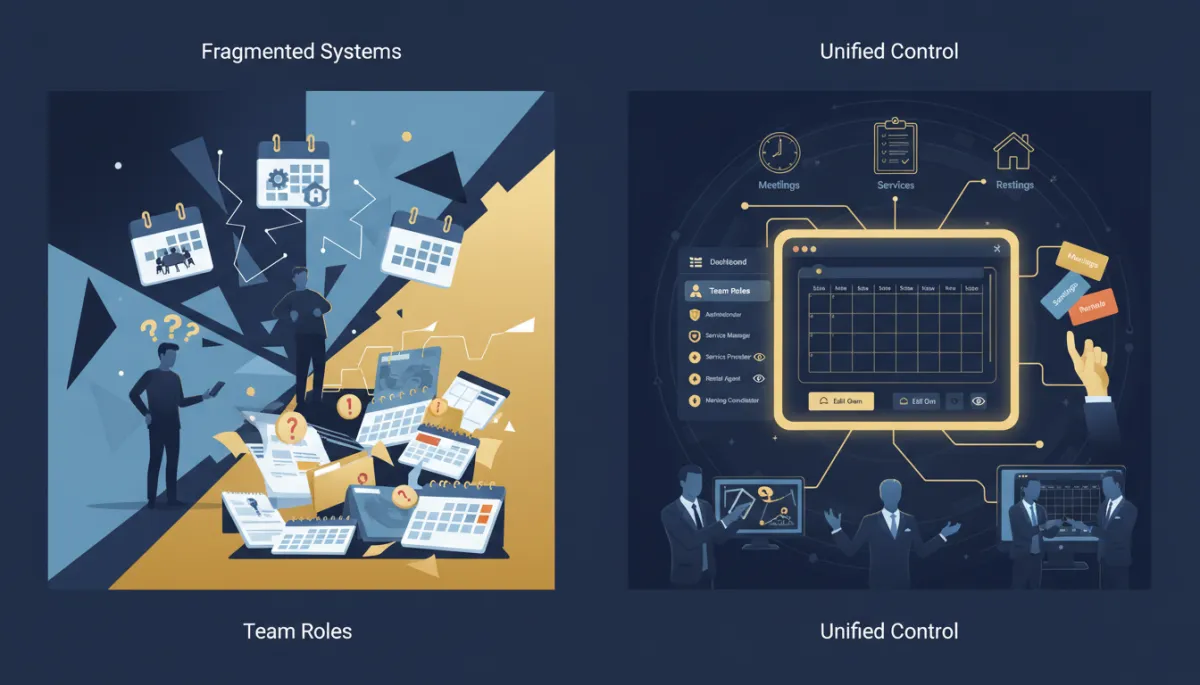
Each module — Meetings, Services, and Rentals — now uses one consistent structure. You can grant, per team member: View Calendars (access the module), Manage setup (calendars, services, or rental listings), Manage appointments (bookings across all three), and Manage groups/categories (meeting groups, service categories, rental categories).
Two new controls make it more precise: Manage associated resources governs access to locations, staff, resources, and add-ons, and Manage preferences & global settings independently controls module-level settings. So someone can run day-to-day bookings without being able to touch your resources or global configuration.
Give the front desk the bookings, give the manager the setup, and stop handing everyone the keys to everything.
Mix and match for real roles

Because the controls are granular and consistent, you build access that matches how your team actually works. Appointments-only for the person answering the phone. Setup and resources for the manager. Full control for you. The same choices apply whether they’re working in Meetings, Services, or Rentals, so there’s no relearning a different layout per module.
As your team grows, that consistency is what keeps access tidy — you’re assigning responsibilities, not deciphering three different permission schemes.
Where to set it
For an account owner working across the business: Settings → Team → select the team member → Roles & Permissions → Calendars. For account-level staff: Settings → My Staff → select the team member → Roles & Permissions → Calendars. Configure the View and Manage permissions you want, then Save.
The takeaway
If your team touches your calendars, take five minutes and set real roles: bookings for the front desk, setup and resources for managers, full access for you. One consistent model across Meetings, Services, and Rentals means you grant it once and it behaves the same everywhere — more control, less risk as you scale.
Simplify. Automate. Scale.
