Send Calendar Emails From Your Name — and Actually Find the Right Appointments
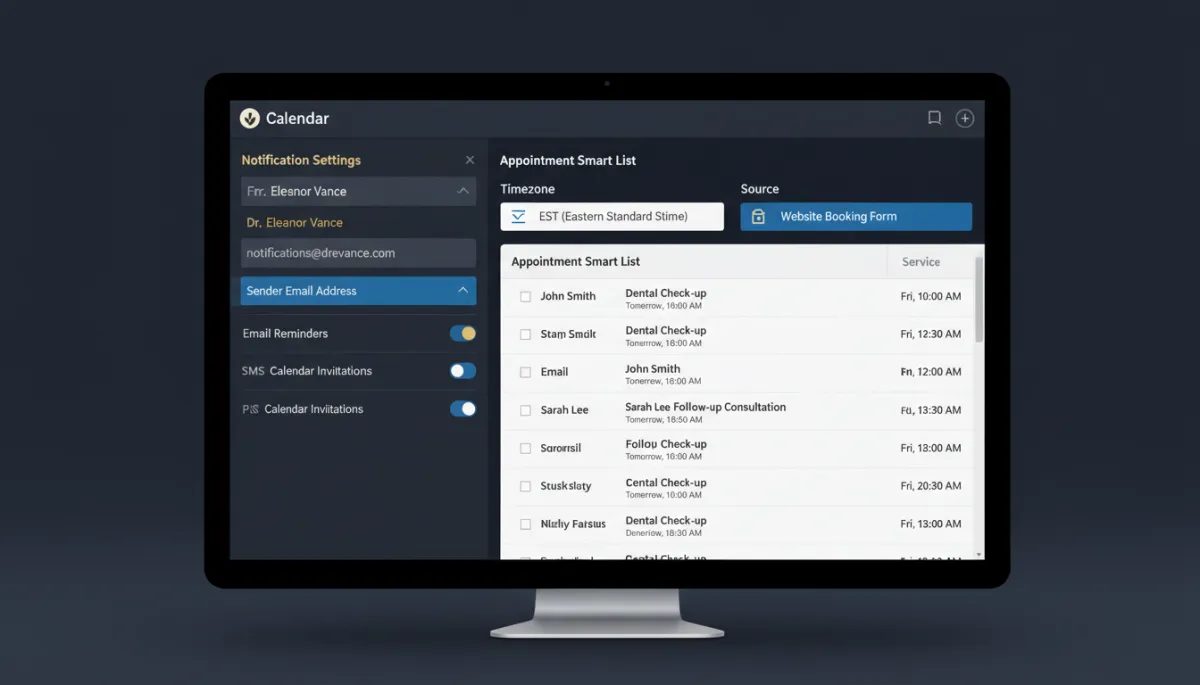
Two small things about calendars quietly annoy every operator. Your appointment confirmations go out from some generic system address that doesn’t look like you. And when you actually want to find a set of appointments, the filters can’t quite slice the list the way your brain does. Both got fixed.
Notifications that look like they came from you
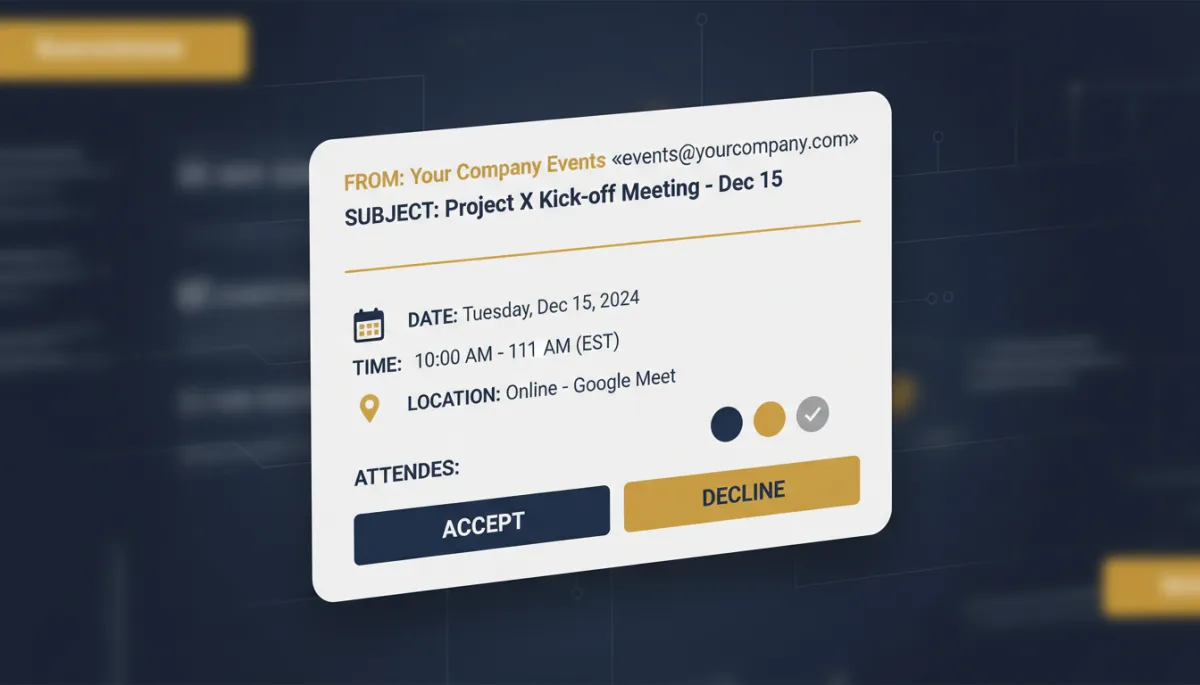
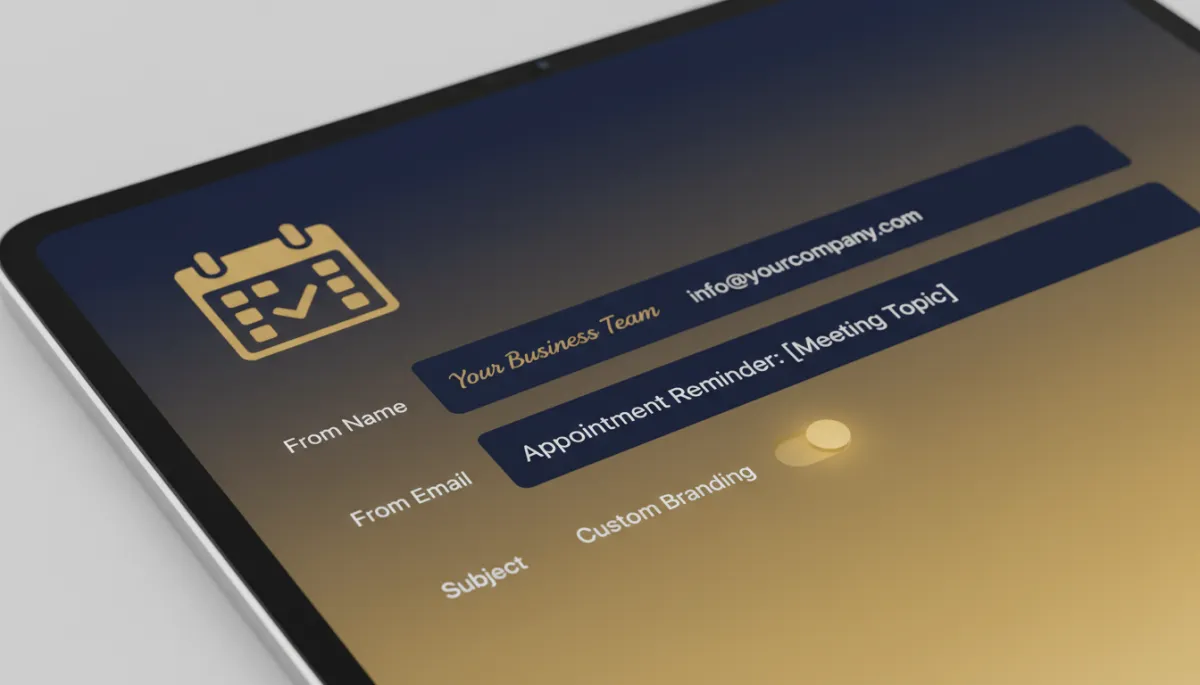
You can now set the From Name and From Email on calendar notifications, so confirmations and reminders show up as you, not as a nameless system address. When you pick an email template, you can set the subject line right there too. And all three — name, email, subject — support custom values, so you can personalize them with the custom-value selector instead of hardcoding one static line.
That’s the difference between a reminder your client trusts and opens, and one that looks like it might be spam.
A confirmation from “Dr. Rivera’s Office” gets opened. One from a generic system address gets second-guessed.
Appointment smartlists that slice the way you think
The appointment smartlist got real filtering muscle. There are new Contacts and Source filters — pull up only the appointments tied to specific people, or group them by where they came from. The Sort By layout is cleaner. And a few things that used to silently break now behave: if a contact, user, or calendar tied to a filter gets deleted or reassigned, you get a clear error on the page and the problem filter is flagged with an explanation instead of just showing wrong results.
Two more quiet wins: smartlists now respect assigned-data settings, so people only see what their role should, and time-based filters like “Today” and “Upcoming” now honor the user’s timezone — so “today” means your today, not the server’s.
The takeaway
Take two minutes on your calendar setup. Set the From name and email so your notifications look like you and get opened, and use custom values to personalize the subject. Then lean on the new Contacts, Source, and timezone-aware filters to actually find the appointments you’re looking for. Small settings, noticeably smoother days.
Simplify. Automate. Scale.
