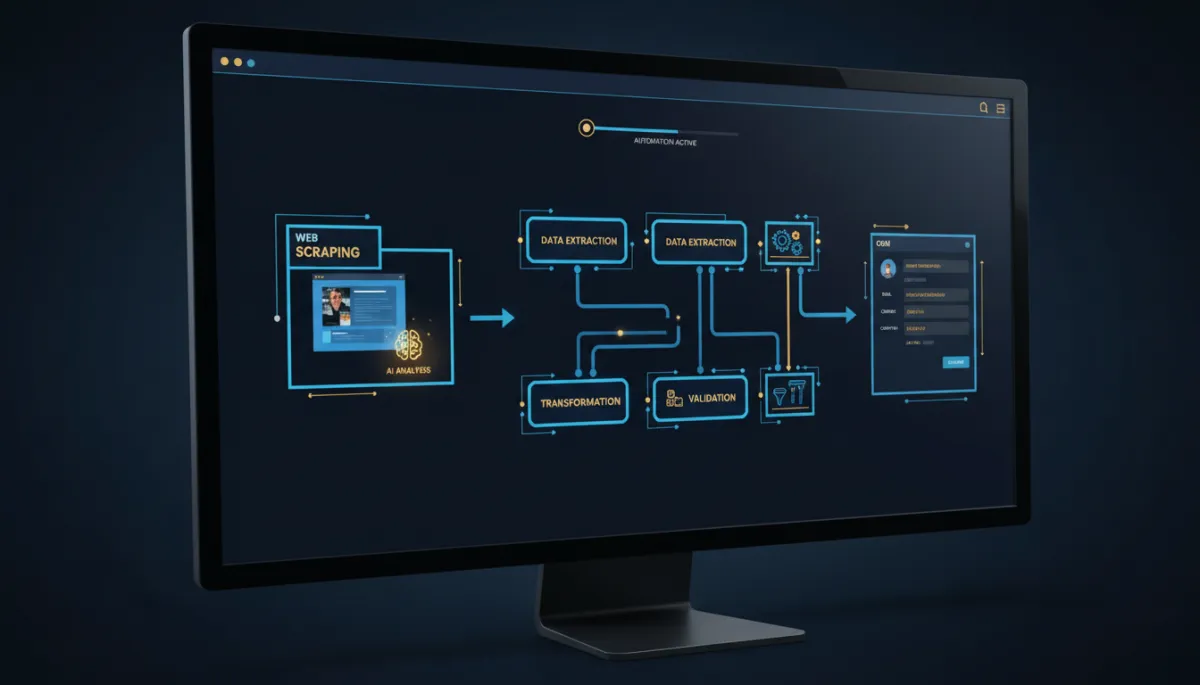
Let a Workflow Scrape a Web Page and Drop the Data Into Your CRM
Web scraping and competitor monitoring have always lived in their own tab — a separate tool you checked when you remembered to, with data you copied by hand into wherever it actually needed to go. Useful, isolated, and manual. Now it connects to your automations.
Browse AI plugs into your workflows, so a captured web page can trigger the next step and land its data right in your CRM.
One trigger, four actions

The integration gives you an instant trigger — New Completed Task — that fires the moment a Browse AI robot finishes a run (filterable by robot), returning the captured data plus task details. And four actions: Run Task, Bulk Run Tasks, Get Task, and Get Bulk Run — so a workflow can kick off a single scrape, queue a batch, or fetch the results of one you started earlier. Workflow variables are accepted in every field.
That’s enough to turn scraping from a thing you do into a thing your automations do for you.
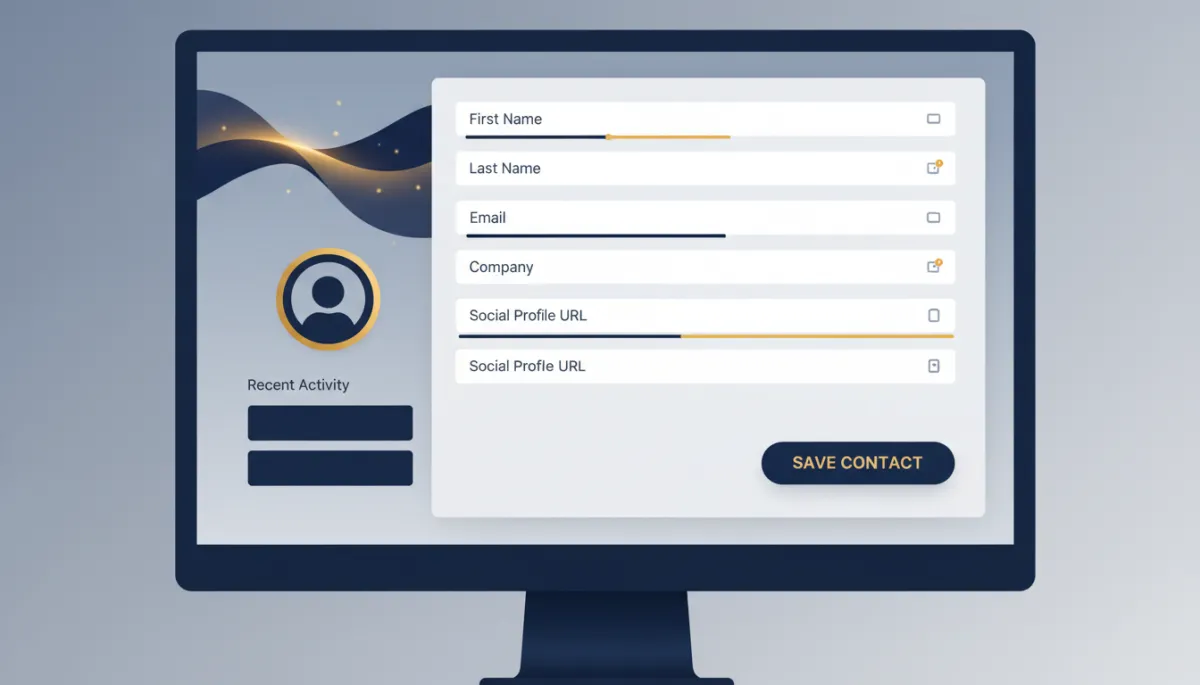
A customer submits a URL. The workflow scrapes it, waits for the run to finish, and writes the captured fields onto their CRM record — no copy-paste.
Where it earns its place
A few patterns click immediately. A customer-submitted URL triggers an on-demand scrape and flows the result back into the CRM. A daily competitor monitor pipes straight into an internal alert instead of a dashboard nobody opens. A CSV of URLs fires a bulk run with the captured data landing back on the right records.
The concrete version: a customer submits a competitor URL through a request form; the workflow runs the relevant robot against it, waits on the New Completed Task trigger, parses the fields, and writes them onto the customer’s record — hands-off from submission to stored data.
How to connect it
In Workflows, add the Browse AI trigger or action and click Connect your account, then paste your Browse AI API key (from Settings → API Keys in your Browse AI dashboard). For triggers, pick the robot to monitor and run Find New Records to capture a sample. For actions, pick the robot and pass its inputs, then Test Action to validate. Save and publish. (It’s a premium, beta component — runs are billed at the standard automation rate, and Browse AI’s own usage is billed by Browse AI.)
The takeaway
If you’re already scraping or monitoring the web, stop shuttling the data by hand. Connect Browse AI to a workflow, let a submitted URL or a schedule trigger the run, and pipe the captured fields straight into your CRM. The data collection you were doing manually becomes another step your automation just handles.
Simplify. Automate. Scale.
