
The No-Show Cost You $300. Your AI Should Catch It in 60 Seconds.
The 2pm didn’t show. By the time you texted them, six hours of dead air had passed and the message read like an accusation.
That slot was worth something specific. For a med spa it’s a $300 treatment. For a contractor it’s a half-day of a crew standing around. And the recovery window — the stretch where the client still feels a little guilty and would happily rebook — closes fast.
Your AI has been waiting on the wrong signals
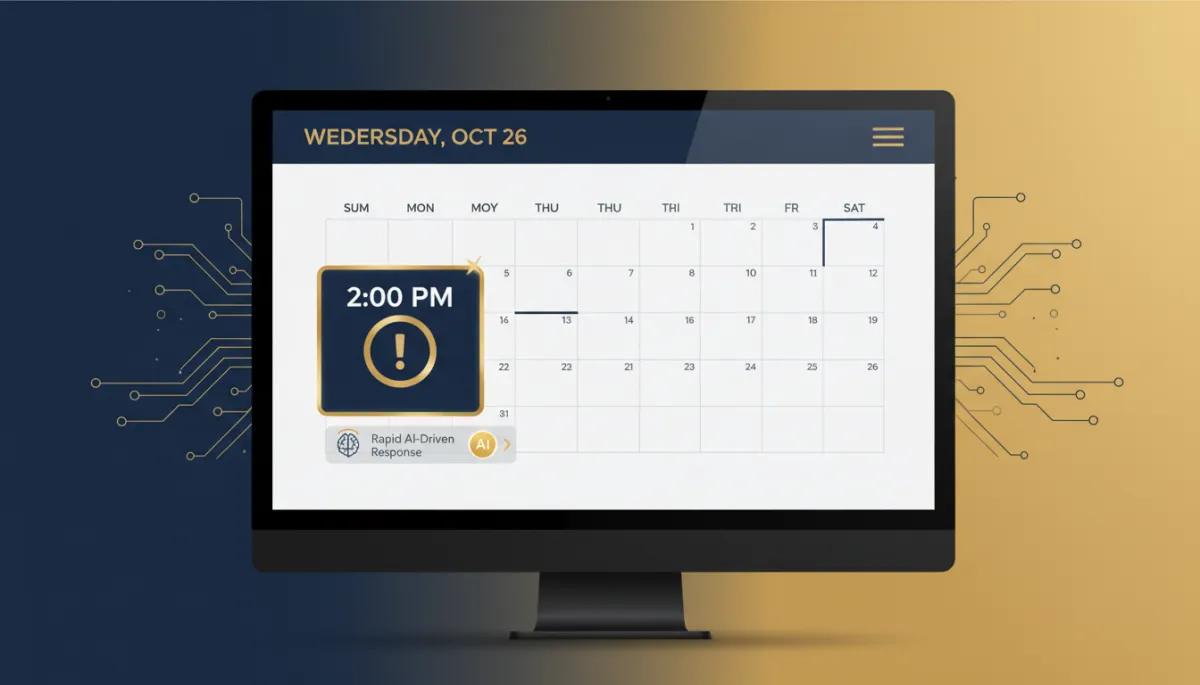
Appointment triggers let your Savage AI agent fire on calendar events. Two types: Customer Booked Appointment fires the second a new booking lands. Appointment Status Changed fires when an appointment moves to Confirmed, Cancelled, Showed, No Show, or Rescheduled.
Building it

Open Savage AI Studio. On the canvas, choose your trigger type. Select at least one calendar. If you picked the status trigger, choose your statuses. Save. Then write the agent’s logic — reference the appointment in the prompt, add tags, SMS, email, or team notifications.
The takeaway
Pick your highest-value calendar and build one agent against one trigger. Appointment Status Changed, filtered to No Show, with a message that offers two specific rebooking slots. Run it on a test calendar for a day. Then publish it.
